Productivity · Drive
Drive
File storage with sharing that is actually enforced — and one copy of a file, wherever in the suite it turns up.
Why it is different
A file library the rest of the suite writes into
Drive is not a folder tree bolted on beside the apps. It is where every other WorkSuite module puts its documents, which is why a file attached to a task, a deal or an invoice is that file and not a copy of it.
Sharing that is actually enforced
Fifteen named permissions of its own. Changing somebody else’s access is separate from sharing; downloading is separate from viewing; restoring from the bin is its own act.
One file, one copy, many places
A file attached to a task, a deal or an invoice is the same file — not a copy sent by email. Attaching it does not widen who can open it.
Companies stay apart
An item belongs to a company, and it can only be shared outside it into a company named as a partner. Withdraw the partnership and the access ends.
It explains itself
For any item you can say who can open it and why, check one person against the rules, and read the timeline of what changed, who shared it and where.
01
Finding things
Drive home
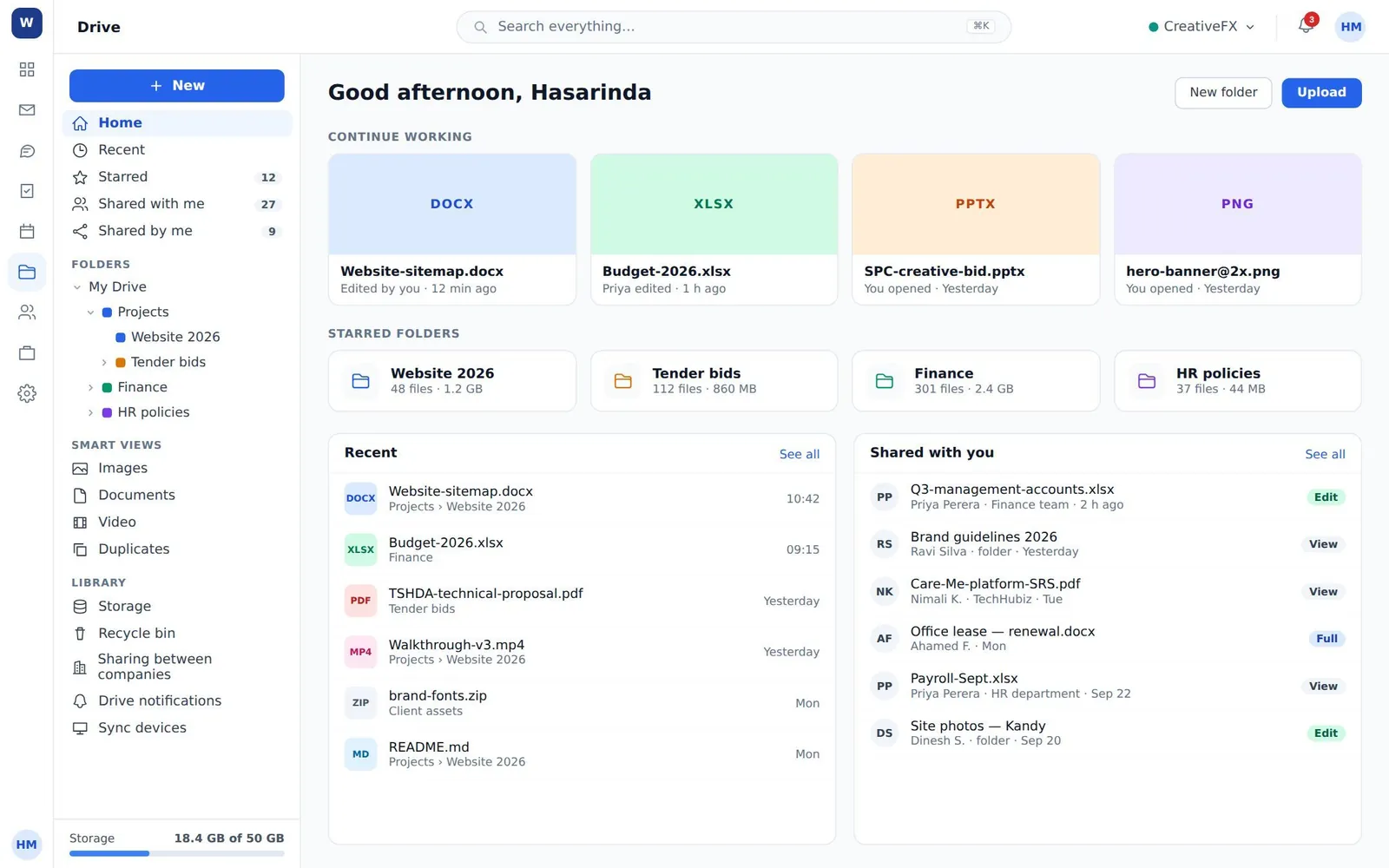
Continue working from where you left off, starred folders with their file count and size, what is recent, and what other people have shared with you — with the level they gave you.
A folder, and what one file is
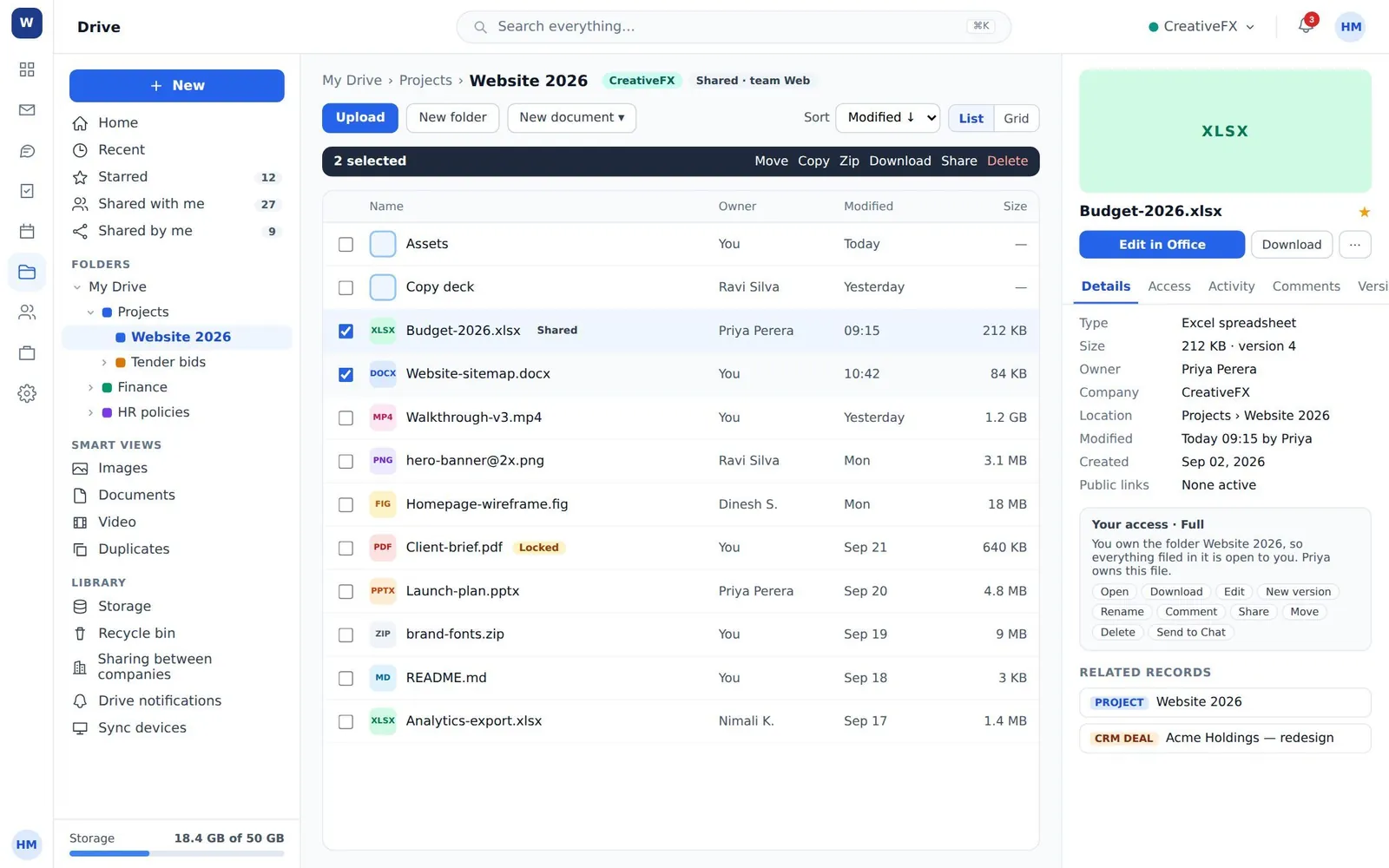
Select several and the bar offers Move, Copy, Zip, Download, Share and Delete. The details pane gives type, size, owner, company, location, public links, the access you have and what it lets you do — and the business records the file is attached to.
Smart views by kind
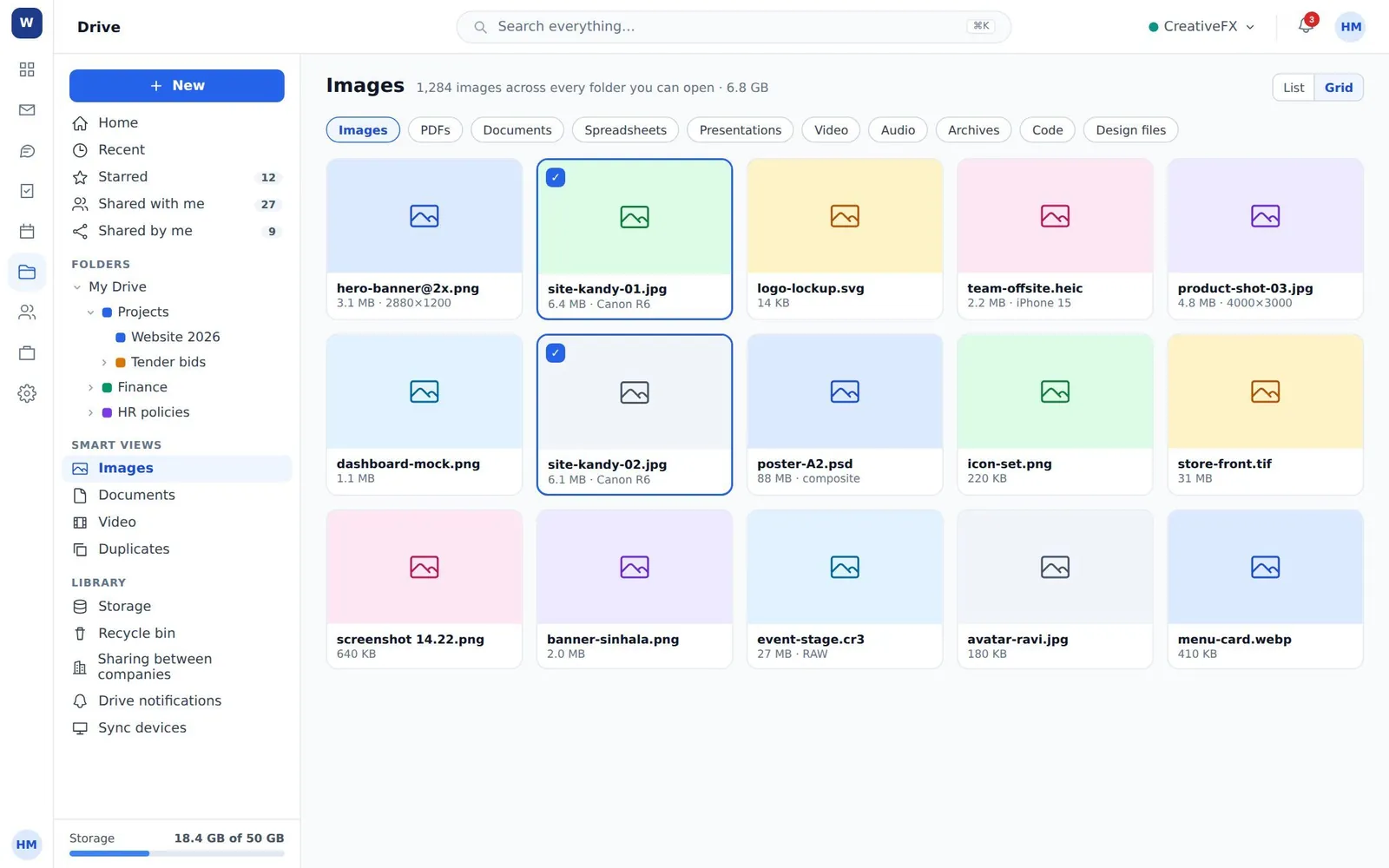
Ten views cut across every folder you can open — images, PDFs, documents, spreadsheets, presentations, video, audio, archives, code and design files — each with its own count and total size.
Shared with me
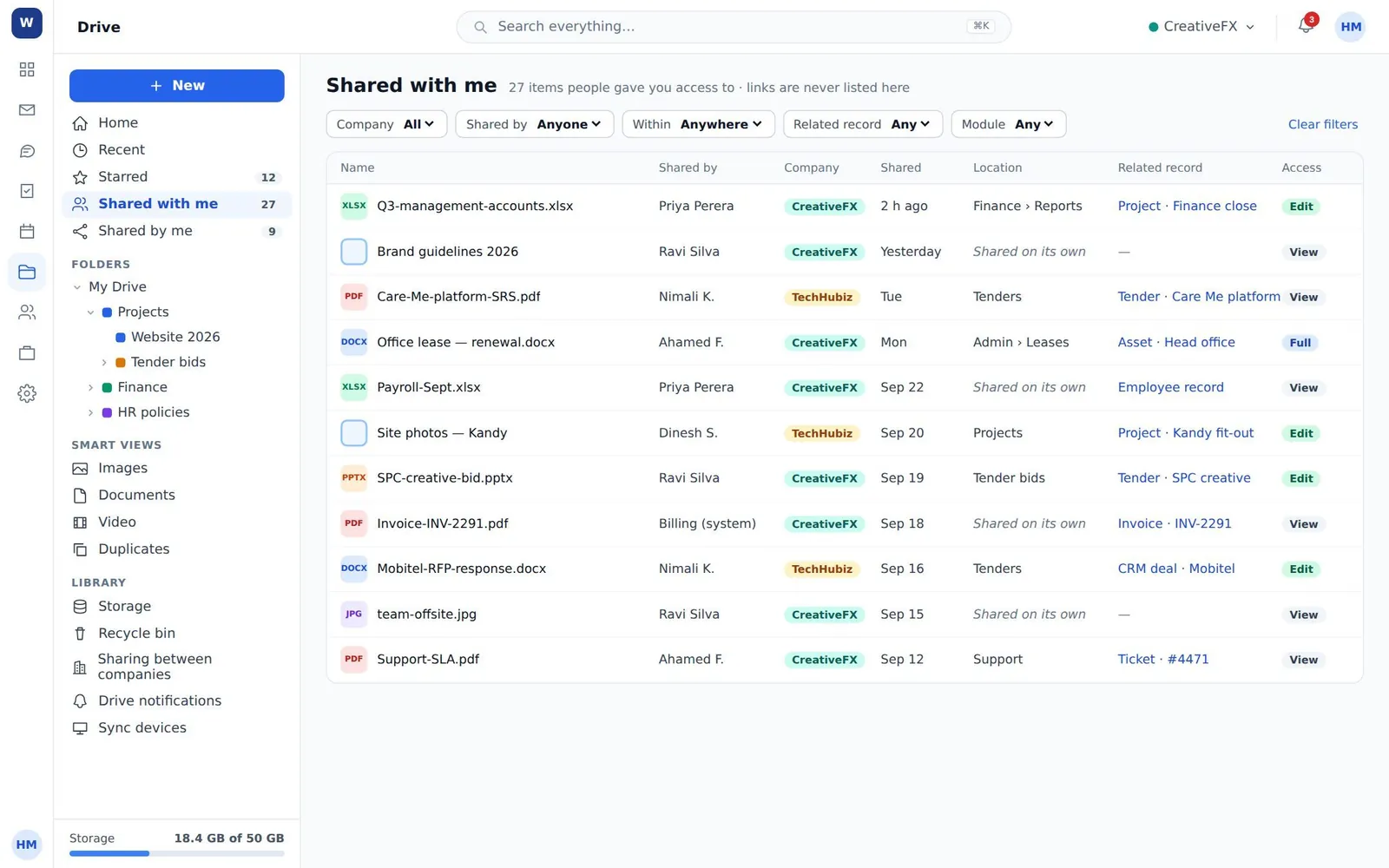
Only what somebody granted you, never a public link. Filter by company, by who shared it, by folder, by the record it belongs to or by the module it came from.
02
Access
Sharing with people, teams, departments, roles — or a company
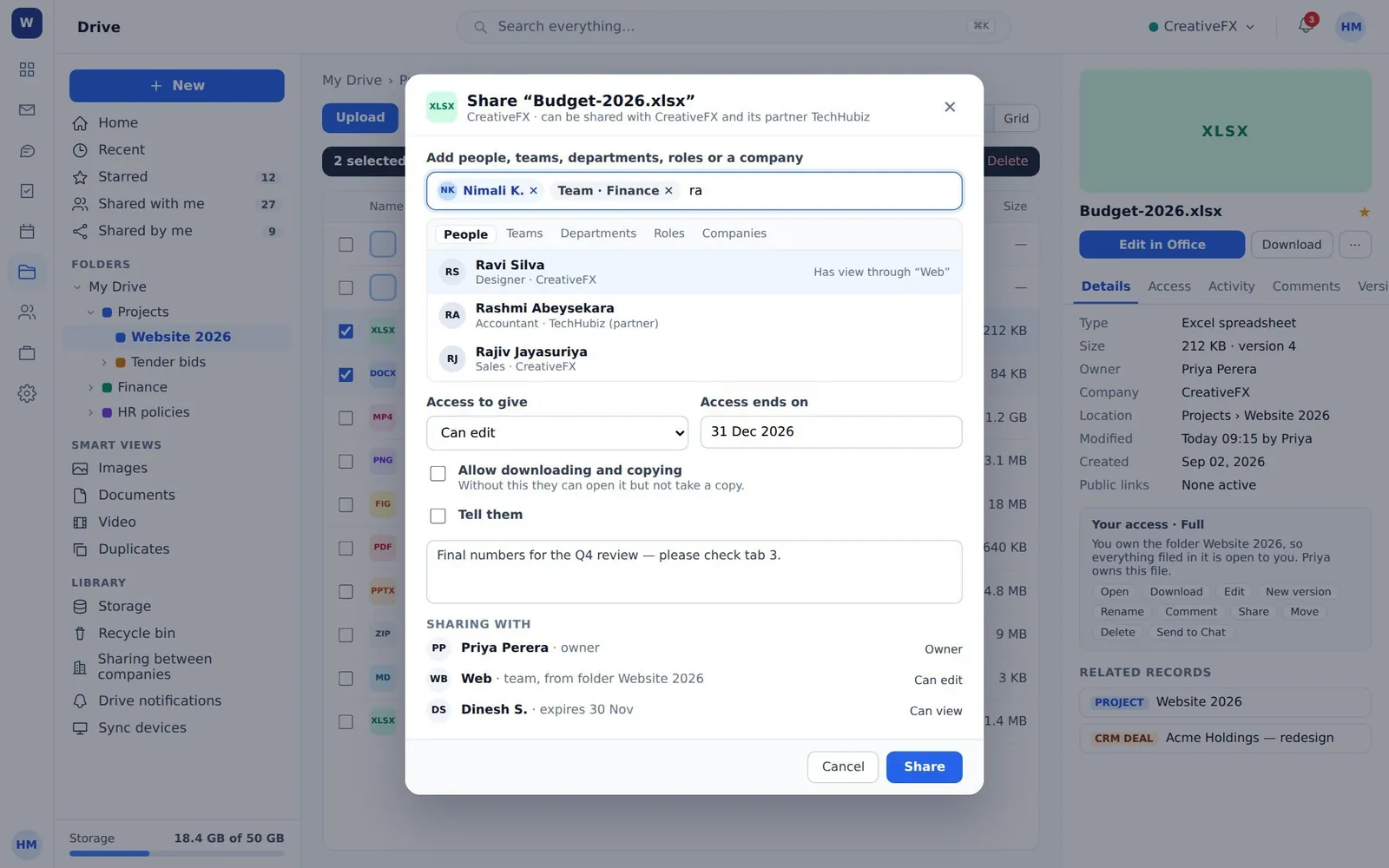
Search across people, teams, departments, roles and companies at once, and see the access each already has before you add more. Set the level, an end date, and whether they may download and copy.
Who can open this, and why
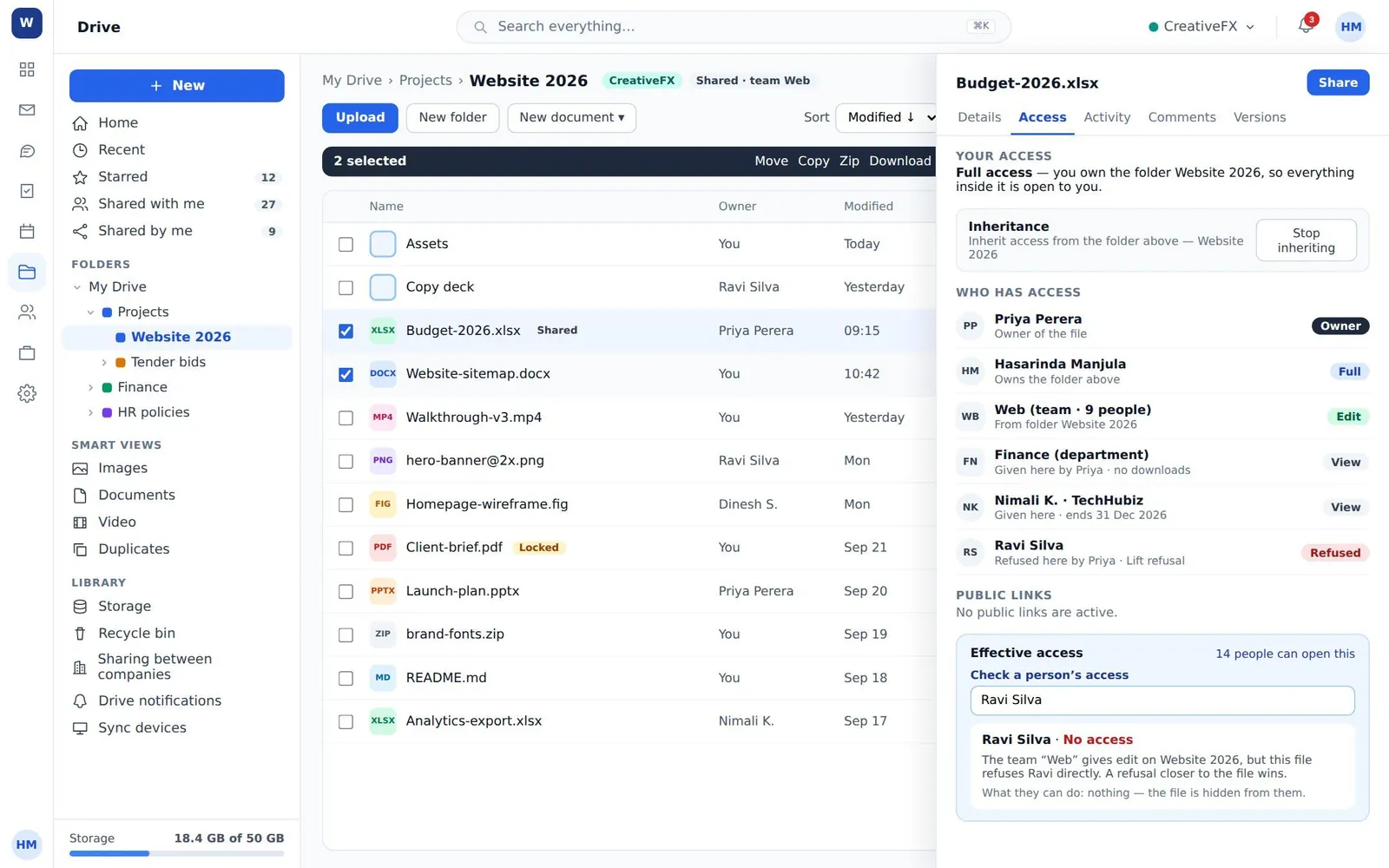
Every grant with the reason it exists — owner, the folder above, a team, a department, a partner company with an expiry — and refusals you can lift. Ask about one person and it explains which rule decided.
Sharing between companies
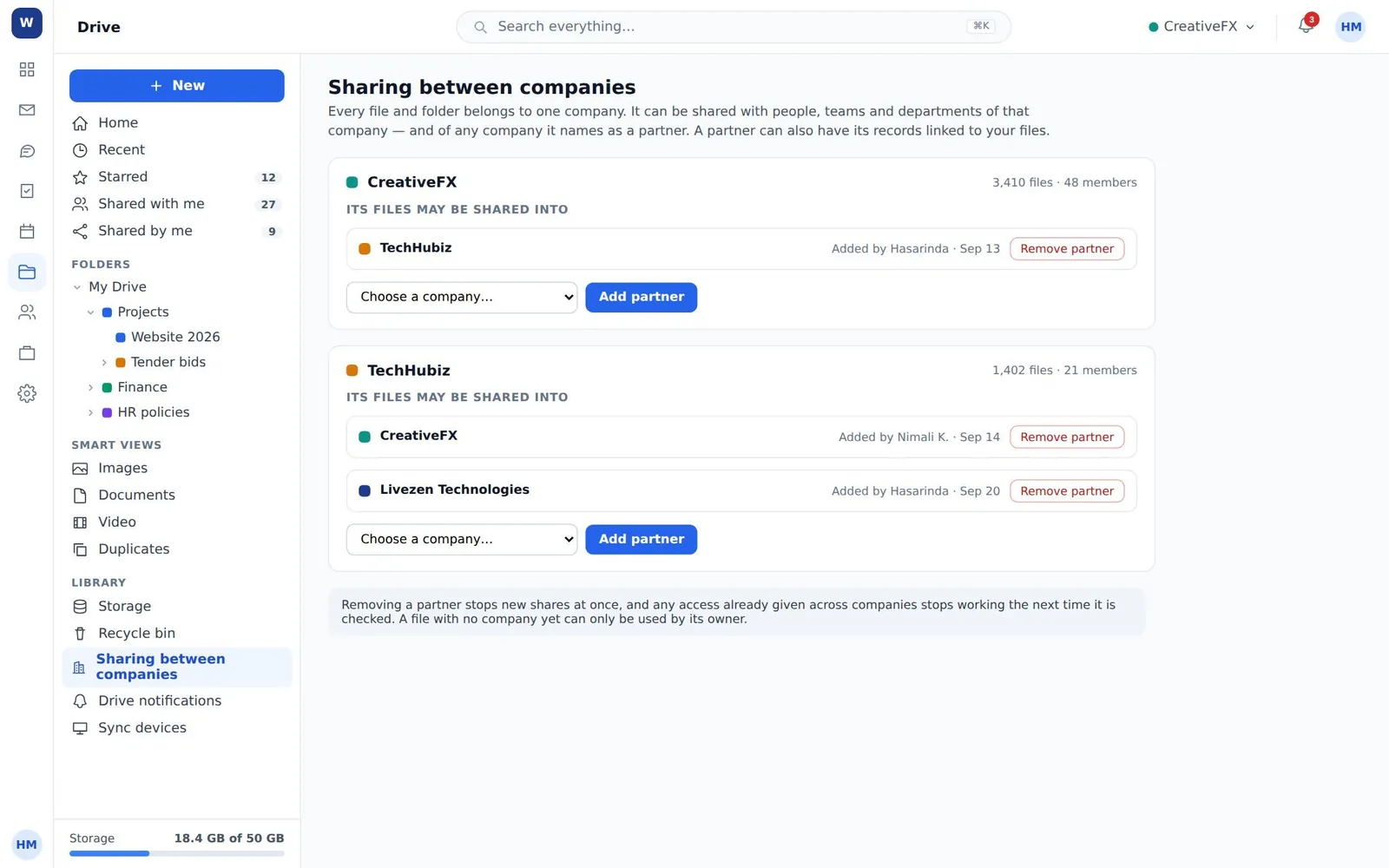
A company shares outside itself only into the companies it has named as partners. Remove one and new shares stop, and existing cross-company access ends at the next check.
03
Working together
Comments and mentions
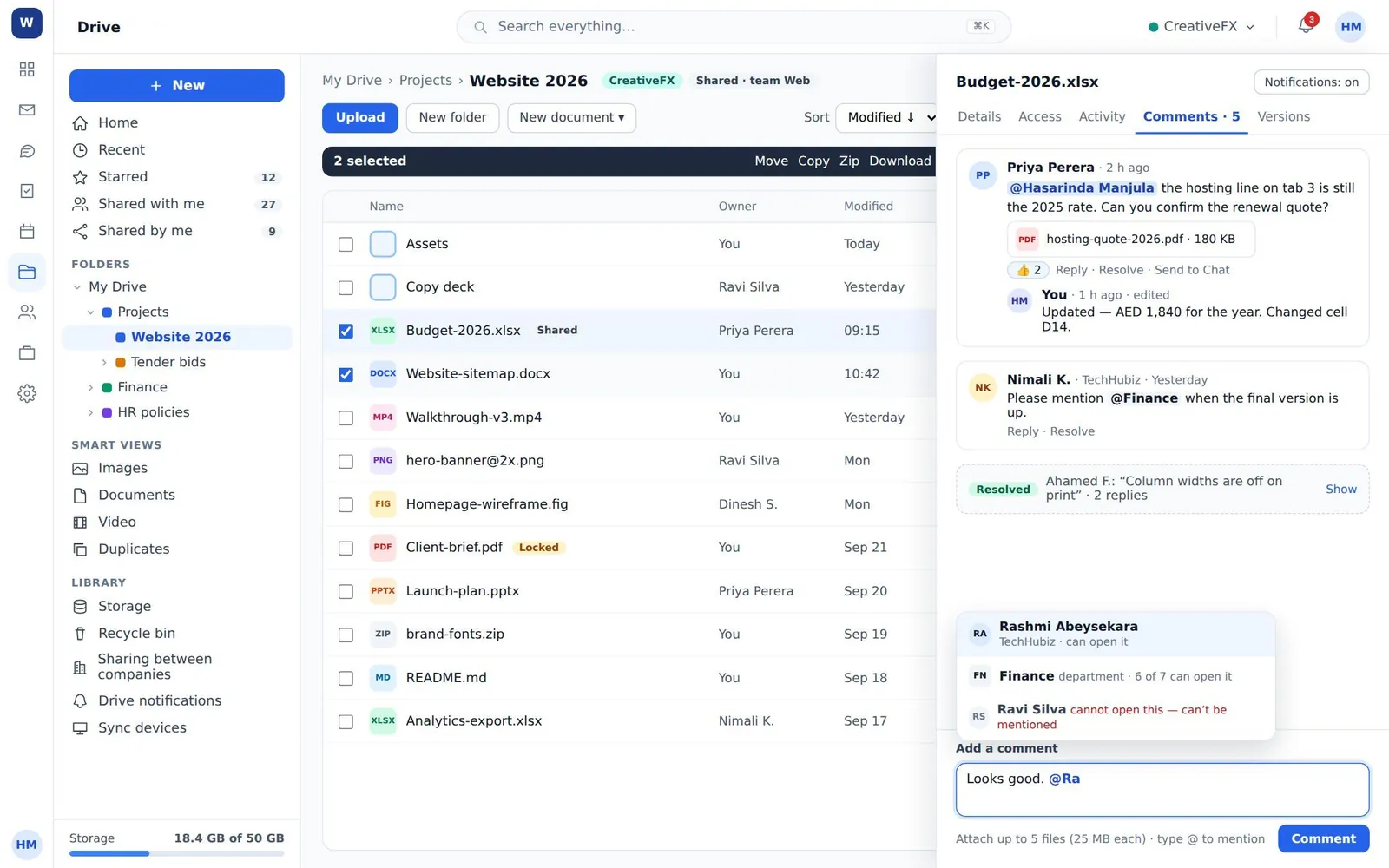
The mention picker only offers people who can open the file — anybody who cannot is shown as not mentionable, and a department shows how many members it would reach. Threads resolve and collapse.
Sending a file to a conversation
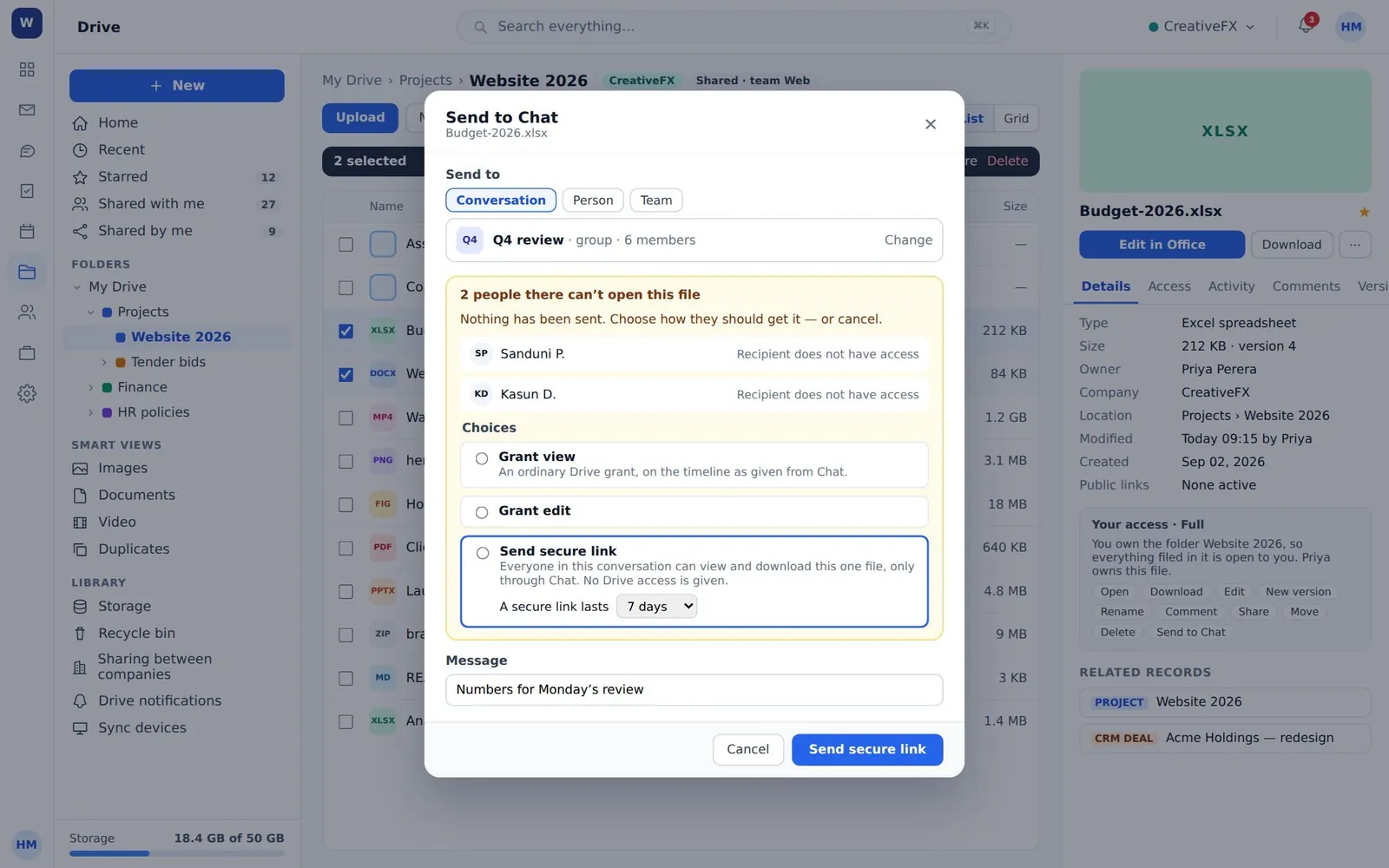
Nothing is posted until the access question is answered. Grant view, grant edit, or send a secure link that lasts 1, 7 or 30 days and works only in that conversation — no Drive access at all.
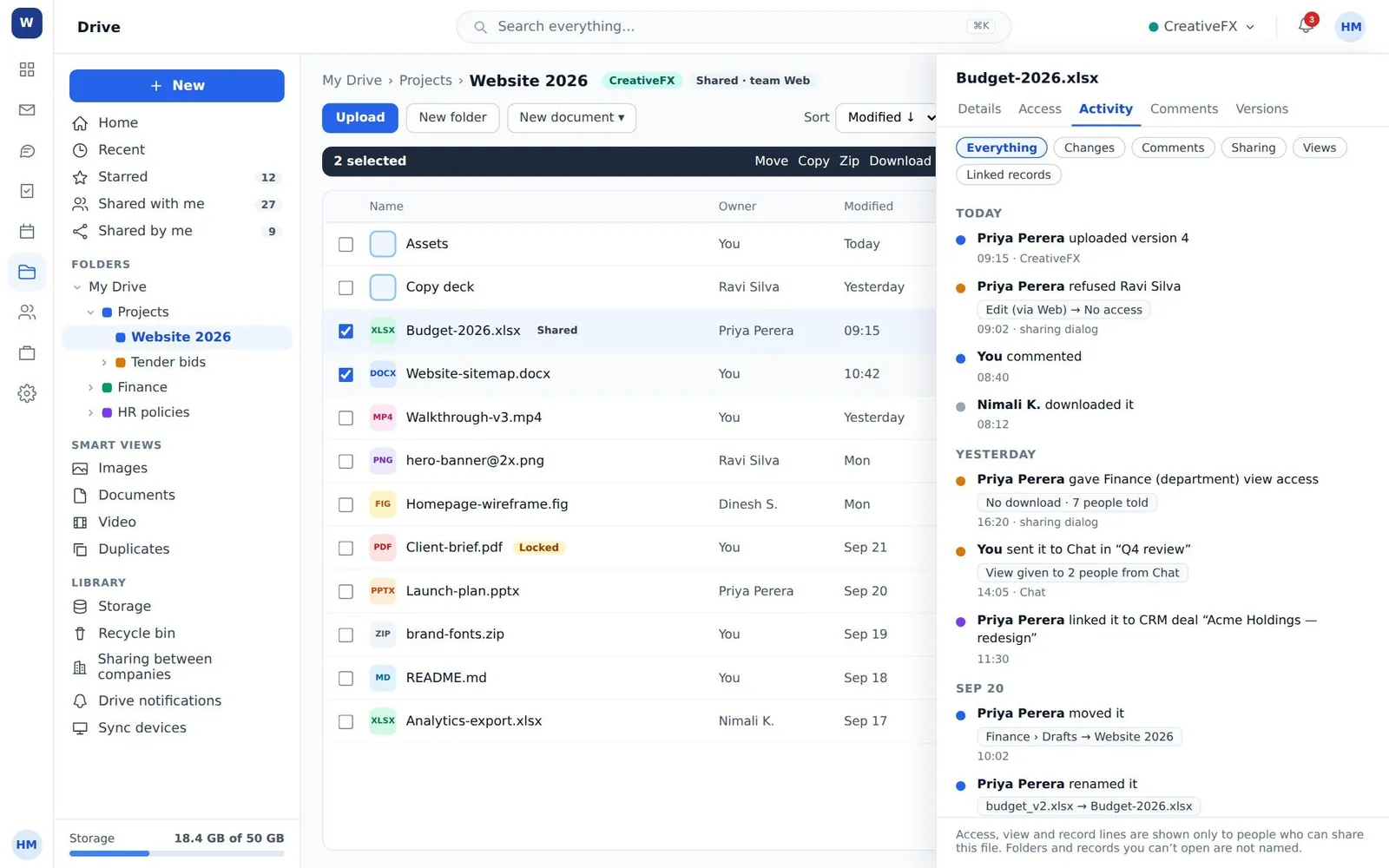
Activity timeline
Sharing lines carry before and after, and where the access was given. Access, view and record lines are shown only to people who could share the item themselves.
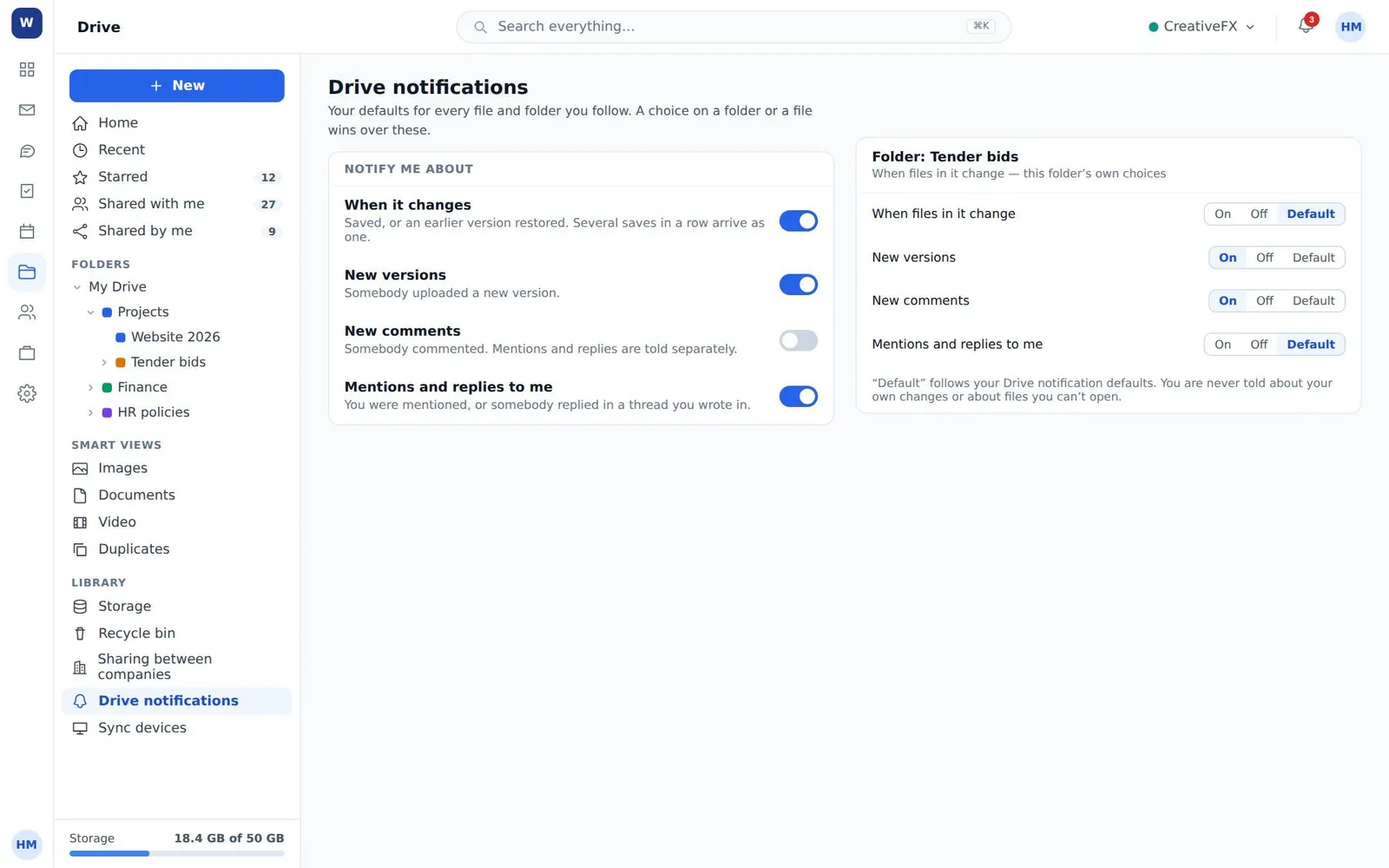
Notifications, per folder
Four topics — changes, new versions, new comments, mentions and replies — set once as your default, then turned on or off for a folder that needs different treatment.
04
Editing
Versions, and getting one back
Upload a new version with a note, or let one arrive from the office suite, the image editor or the code editor. Restoring an earlier version is itself reversible.
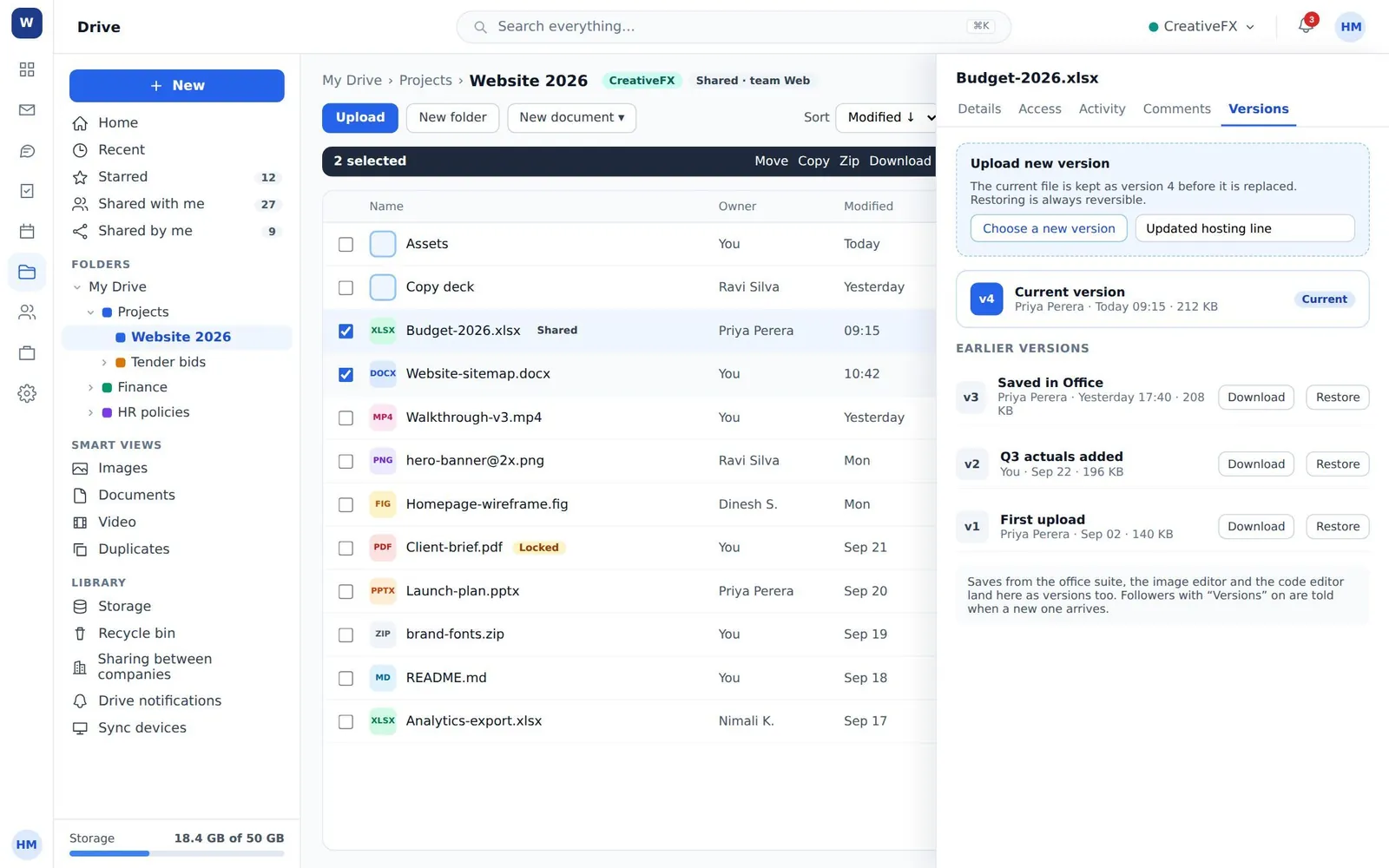
Image editor
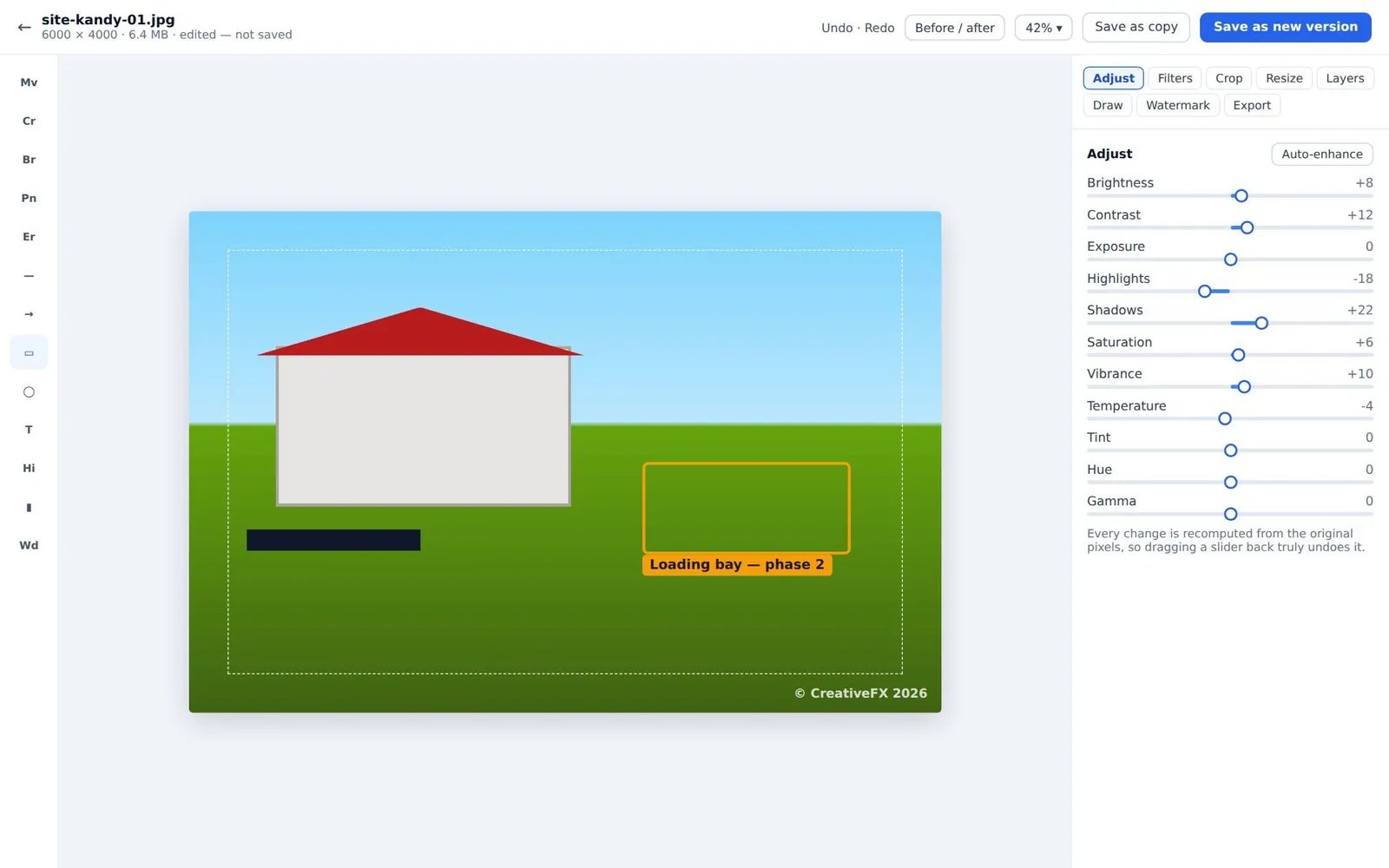
Thirteen tools including crop, arrow, text, highlight, redact and magic wand, with adjust, filters, resize, layers, draw, watermark and export panels. Save as a new version or as a copy.
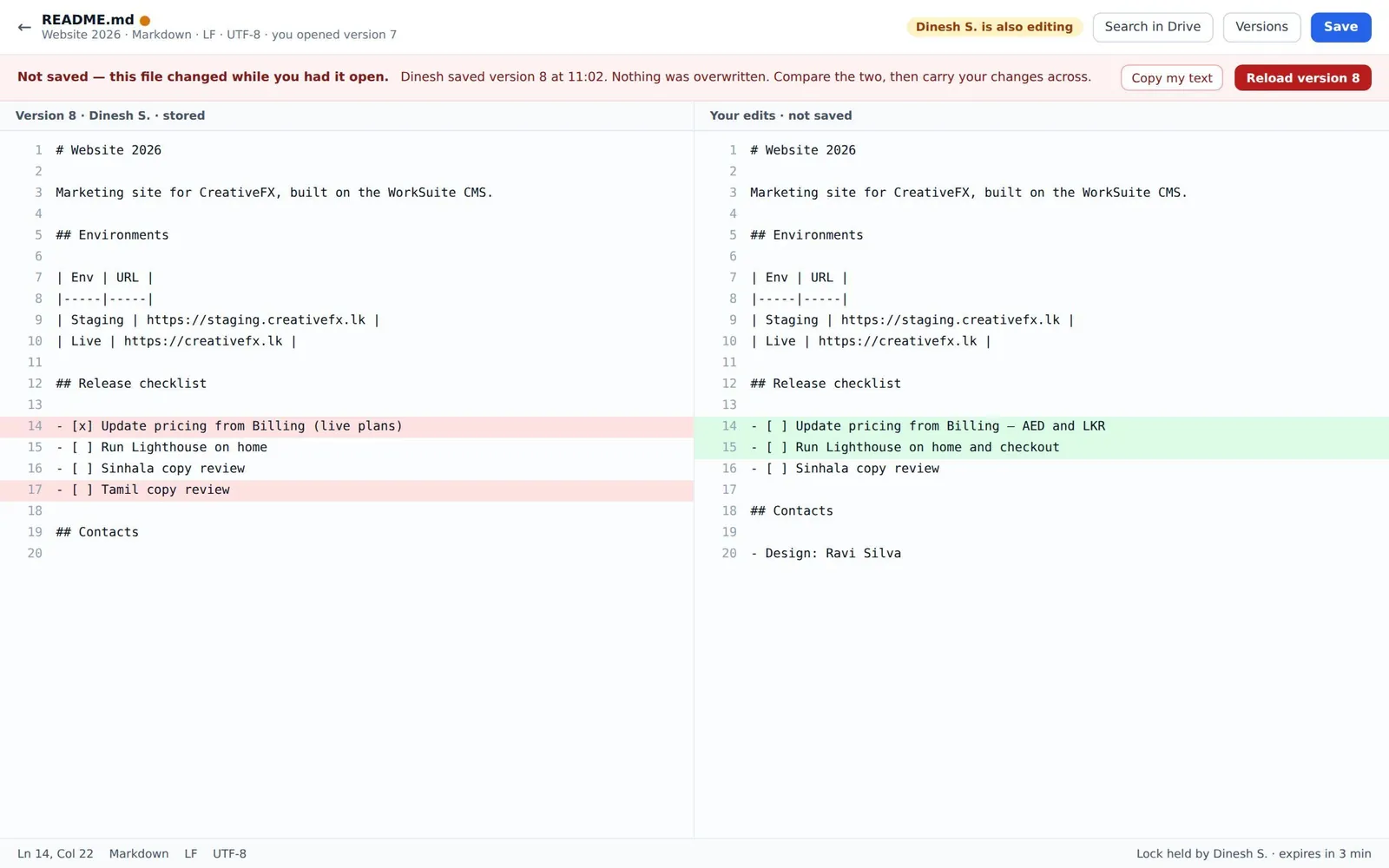
Code editor, refusing to overwrite
A save that would have clobbered somebody is refused, not merged: version 8 arrived while you were typing, nothing was overwritten, and the difference is shown side by side.
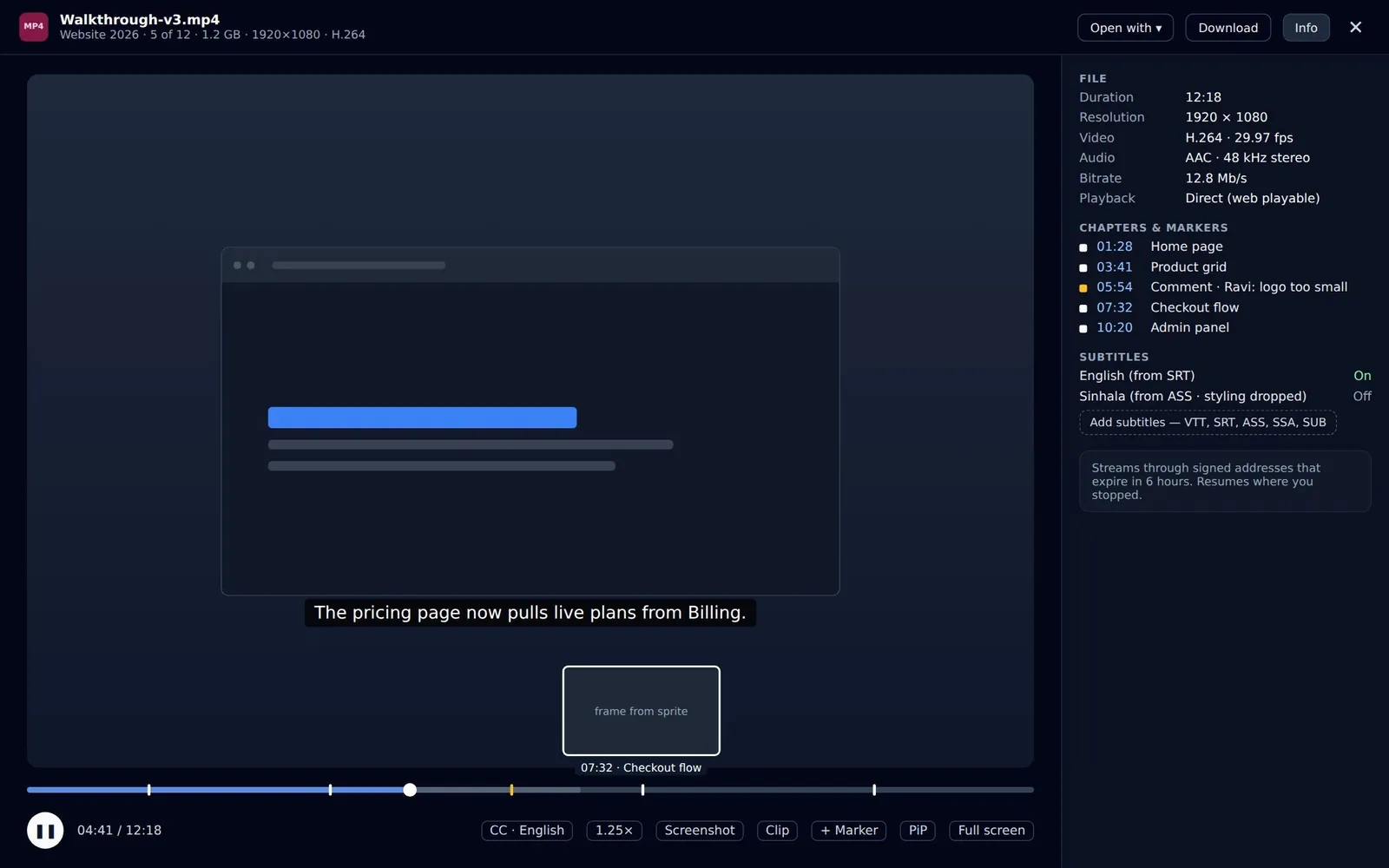
Viewer
Chapters and comment markers on the timeline, scrub previews, subtitles converted from SRT and ASS, screenshot and clip. Download appears only if your access permits it.
05
Keeping it tidy
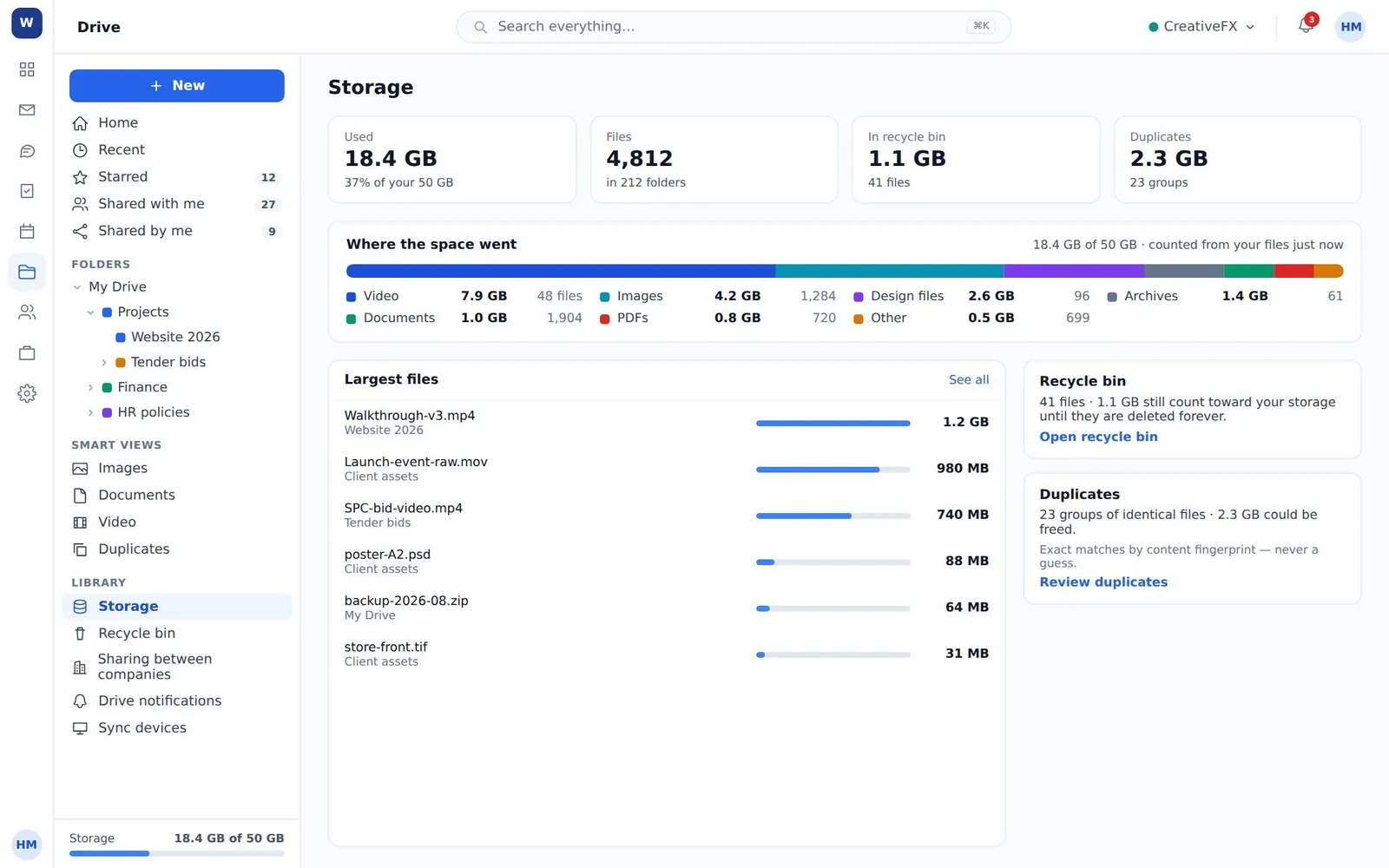
Where the space went
Usage broken down by kind, the largest files, and what the recycle bin and the duplicates are costing you — each with something you can do about it.
Recycle bin
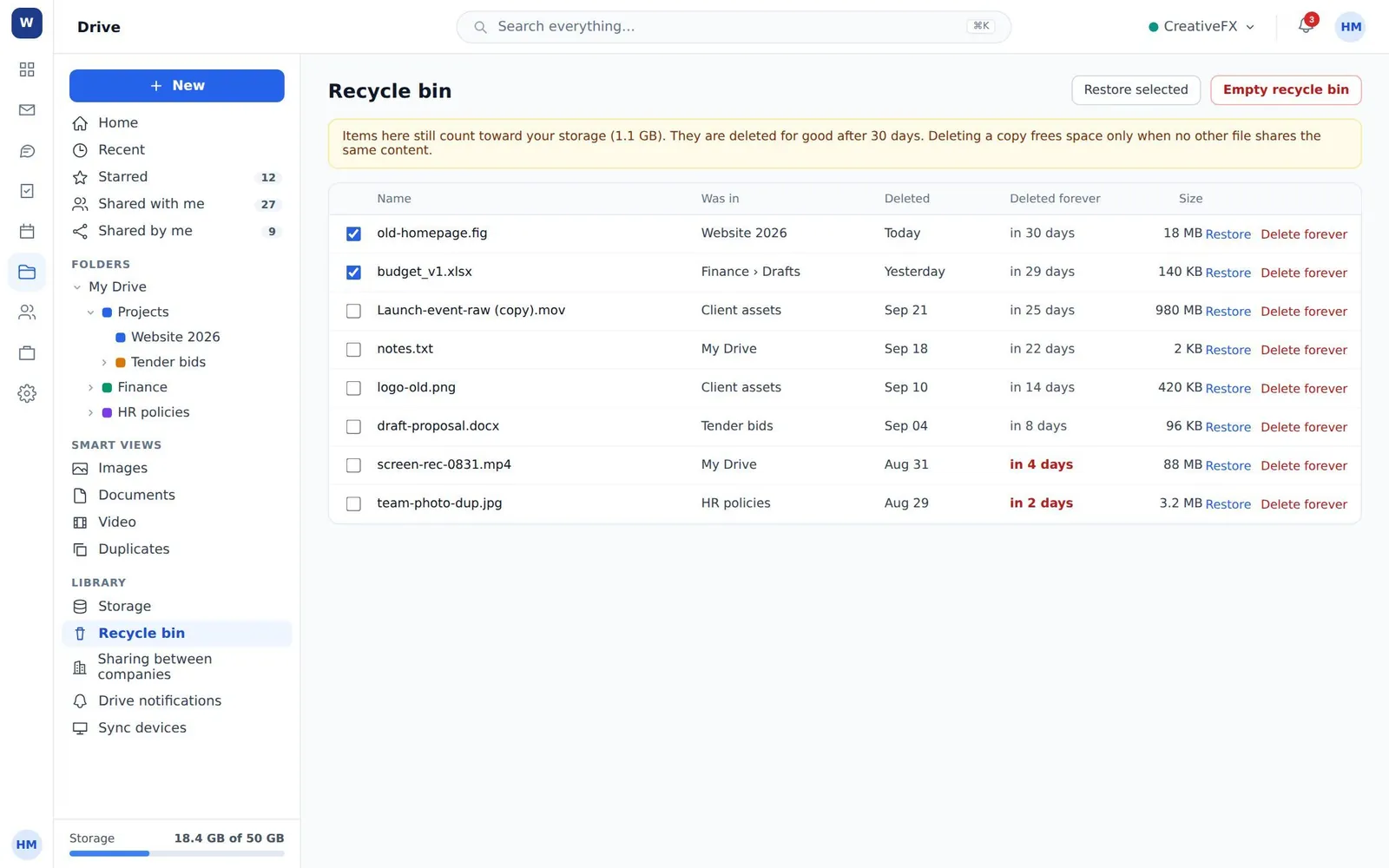
Every row says which folder it came from and how many days are left. It also says plainly that the bin still counts toward your storage until it is purged at thirty days.
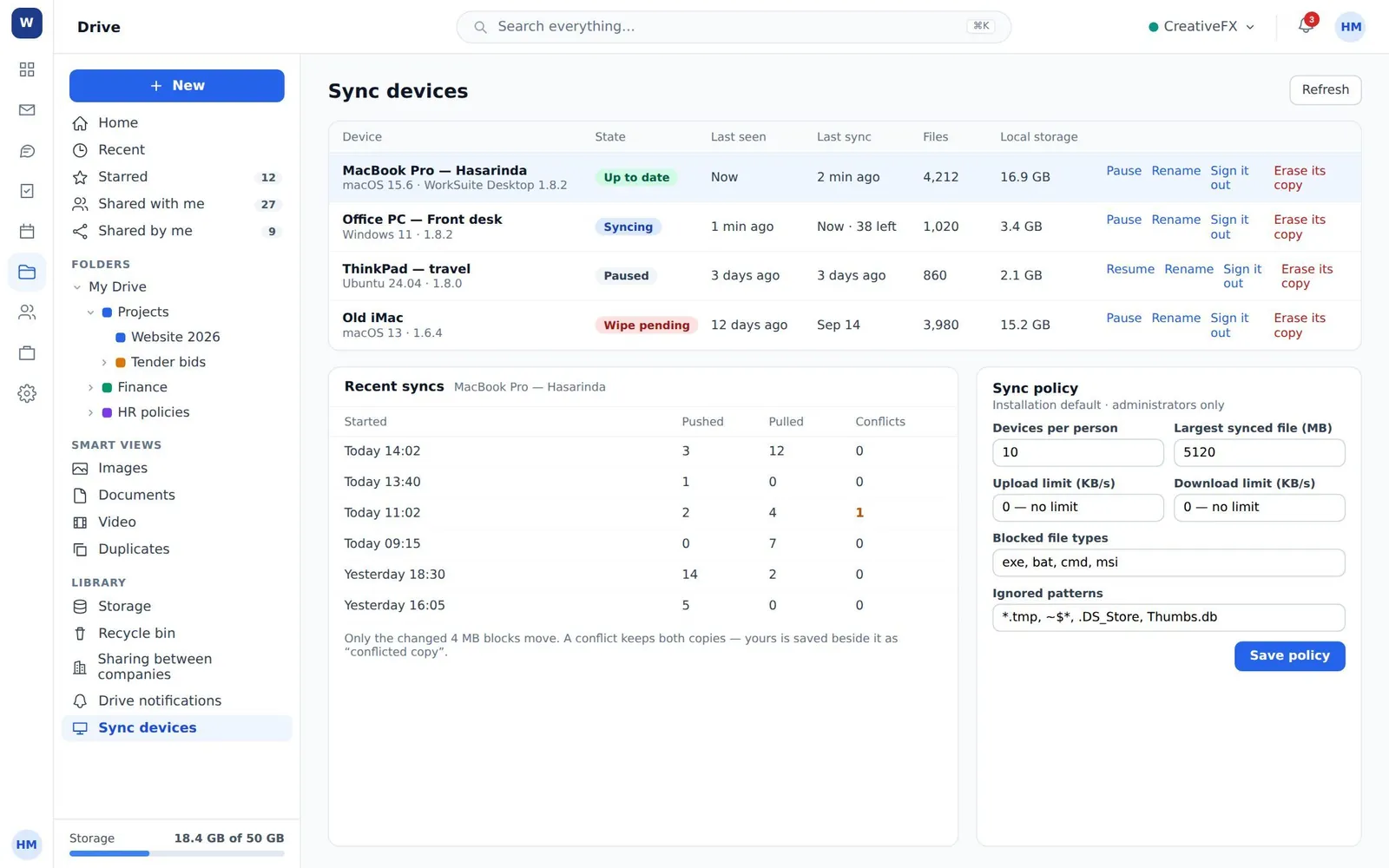
Desktop sync and the devices on it
Each device with its state and last sync, and the ability to pause it, sign it out or erase its local copy. The policy sets devices per person, the largest synced file, transfer limits and which file types never sync.
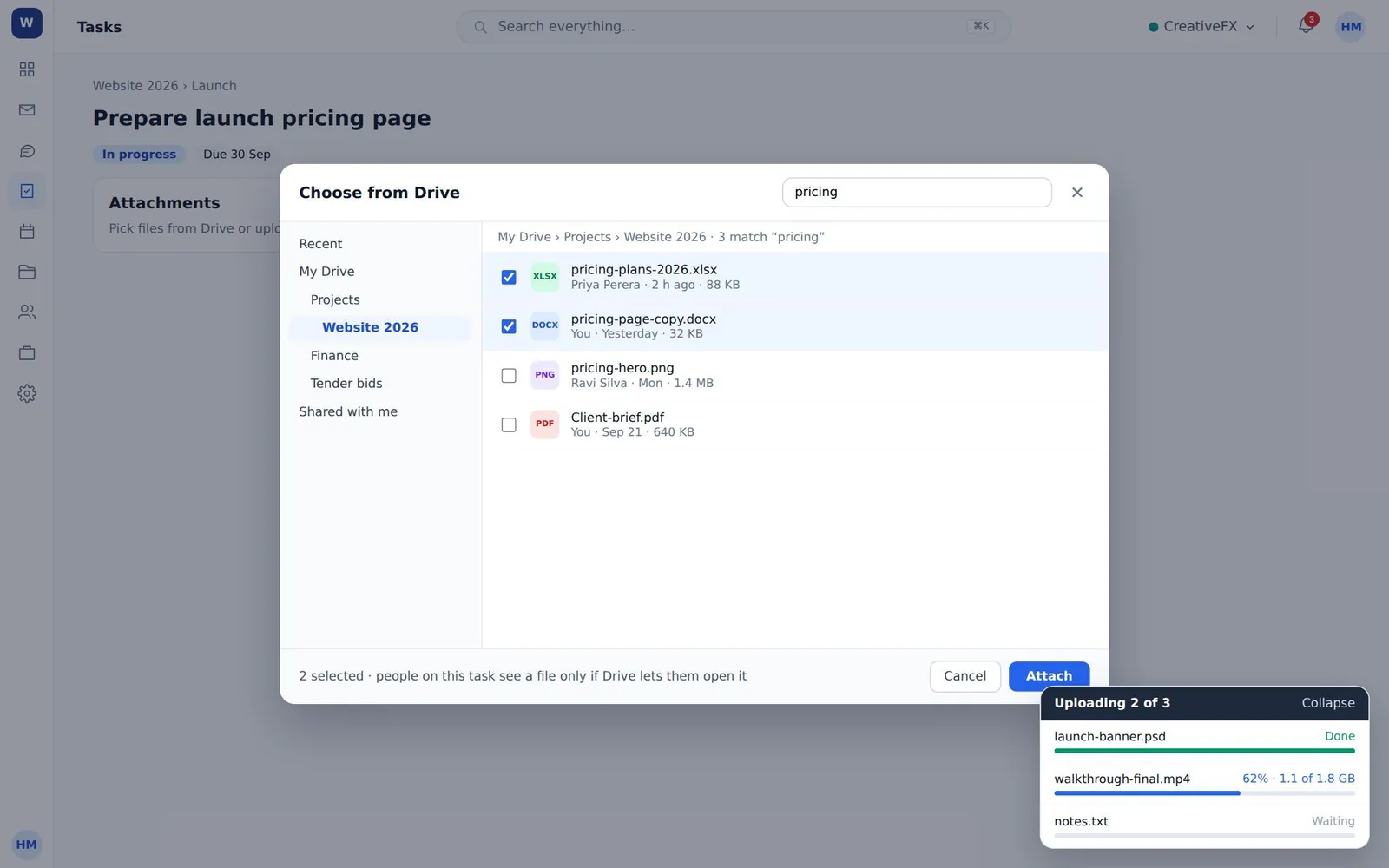
The picker the rest of the suite uses
Every other module attaches files through this one picker, and the footer says the thing people assume otherwise: attaching a file does not widen who can open it.
Worth knowing
Where the edges are
Four things it is better to read here than to discover during an install.
- The recycle bin holds deleted items for 30 days and they count toward storage until it purges them.
- A comment carries at most five attachments, 25 MB each.
- Video streaming and thumbnails need ffmpeg on the server; without it, files still store, share and download.
- Office editing runs through a Document Server, which is a separate service to install.
See Drive with your own folders in it
The demo installation has files, versions, comments and sharing already set up, so you can follow one document from upload to a grant that expires.